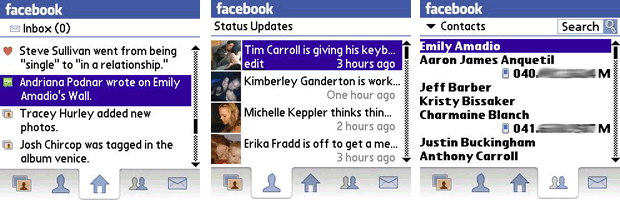
application Facebook for Palm os
http://developer.palm.com/appredirect/?packageid=com.palm.app.facebook
How to SYNC palm pre and Gmail
Open contacts menu > application menu > press "Preferences & Accounts" option from that menu > Add an account "google".
add email and pswd and choose the complete option.
After entering in your username and password your Palm Pre will then automatically setup all of your Google Services which include:
Google Calendar
Gmail email
Google Contacts
Google Talk (Gmail chat) username in Messaging app
Gmail account they will automatically sync with your phone and your online account
Next we'll setup the Google services on our Palm Pre. Begin by opening the "Contacts" menu on your phone. Next you'll navigate to the "Application Menu" and then press the "Preferences & Accounts" option from that menu. Find and tap on "Add An Account" at which point you'll choose "Google."
Enter in your Google account username and password on your Palm Pre and choose the complete option.
After entering in your username and password your Palm Pre will then automatically setup all of your Google Services which include:
Google Calendar
Gmail email
Google Contacts
Google Talk (Gmail chat) username in Messaging app
Google Talk can also be accessed directly from your Palm Pre. This application works in the same manner as AOL Instant Messenger and allows you to add/delete friends, check away messages and add your own and much more. The Gmail Chat application is accessed through your Palm Pre messaging app and will already offer your username and password once you setup your account.


ERROR 0x7301 for PALM CENTRO
1 go preferences>network and select the down arrow next to pcs vision copy
2 select pcs vision (without the word copy), tap connect, now go back to blazer and should be working
or
clicking in network
Under service re select PCS Vision
Re enter password
Click Connect.
