how to send contacts by Bluetooth using android device
Bluetooth File Transfer Main features: (android market)
* Download/upload items from/to any device with OBEX FTP support (almost on all phone models);
* You can also send files using OBEX OPP profile (available on all phone models with Bluetooth);
* Ability to cut/move/copy and paste files between devices and/or to manage local filesystem;
* Create new folders on both local and Bluetooth filesystem;
* Search for any nearby Bluetooth device and read its informations;
* Bookmark list allows you to save your favorite device without searching it again; * Free :)
Use your smartphone to browse, explore and manage files of any Bluetooth ready device, using File Transfer Profile (FTP) and Object Push Profile (OPP): you can also receive files and send contacts!

How to Sync your OUTLOOK Calendar, Google Calendar and Android Phone Calendar
Make sure you're using a supported operating system and Outlook version
Google Calendar Sync is only compatible with Microsoft Outlook versions 2003, 2007, 2010 (32-bit) and operating systems Windows XP, Windows Vista, and Windows 7. Windows XP 64-bit Edition is not compatible with Google Calendar Sync at this time.
Download Google Calendar Sync (version 0.9.3.6) at http://dl.google.com/googlecalendarsync/GoogleCalendarSync_Installer.exe
Once a dialog box appears, click Save File. The downloaded file should open automatically. If it doesn't, manually open it from your browser's download window.
Click OK to confirm that you're aware this is an executable file.
Read through the Google Calendar Sync Terms of Service, and click I Agree.
Follow through the Installation Options and click Install to finish the set-up process.
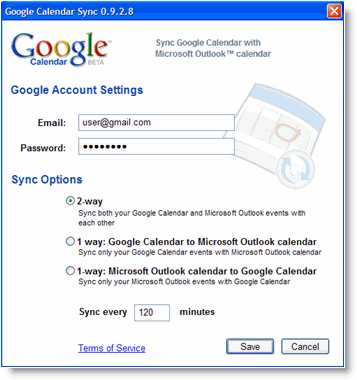
Once Google Calendar Sync is installed on your computer, the Google Calendar Sync Settings window will appear:
How to share a voicemail via email
1. Launch Voicemail on your EVO.
2. Navigate to the desired message.
3. Tap Menu -> Forward.
4. Enter an email address in the “To” field at the top.
5. If necessary, mark the message as urgent or private using the checkboxes at the bottom.
6. Press the Send button to send the voicemail in .wav format to the recipient.
How to save a voicemail:
1. Email a message to yourself using the instructions above.
2. Retrieve the email on your EVO.
3. In the stock Mail app, tap the attachment and select “Save to SD card” from the pop-up menu that appears.
4. In email apps that won’t let you save the attachment (e.g., Gmail), use your computer to download the voicemail and save it on your hard drive.

sync all contact'sfolders with android device
Contacts and then go to Menu -> Display Options.
Here you can select each account and also select the groups that you want in your contacts in Gmail to show up on your Android Contacts list.


SMS back up for android using a gmail account
This application allows you to automatically backup SMS messages on your Android device to Gmail.
You'll be able to browse and search your incoming and outgoing messages - neatly put into threads - under the "SMS" label in Gmail. To browse your backed up messages, log into Gmail and click on "SMS" in the labels box, which is located in the left sidebar.
You need to have a Gmail account with IMAP enabled. See the Enabling IMAP Gmail help page to learn how to enable IMAP for your Gmail account.
SMS Backup can be downloaded and installed from Android Market. Go directly to the Android Market listing by clicking the following link on your device: Android Market listing. Click the "Install" button and confirm the required permissions.
Enable IMAP in your Gmail settings.
On your phone, press < Home >, then open the Email application.
On the 'Your accounts' page, select Next to get started with setup.
Enter your full Gmail address and password, then select Next.
On the next screen, you can give the account a nickname and choose the name to display on your outgoing messages. Tap Done.
And you're done. You can verify your settings from the Inbox view by tapping < Menu > > Account settings.
Incoming settings
IMAP server: imap.gmail.com
Port: 993
Security type: SSL (always)
Outgoing settings
SMTP server: smtp.gmail.com
Port: 465
Security type: SSL (always)


Clear Google search on HTC Evo ( quick search option )
menu > settings > search > clear search shortcuts.
or click on the google lup in the bar one time >menu> settings>search>clear search shortcuts.

Transfer contacts to SD card on Android 2.2
Open contacts (people).
press menu>settings> import/export >export to sd card.
same process to add contacts back only the last part change for import from sd card.


Removing Applications on Android 2.2
- Home screen.
-
menu>settings>applications>manage applications > search the application and tap the one to remove then click on uninstall.


Hotspot connection on android devices
-
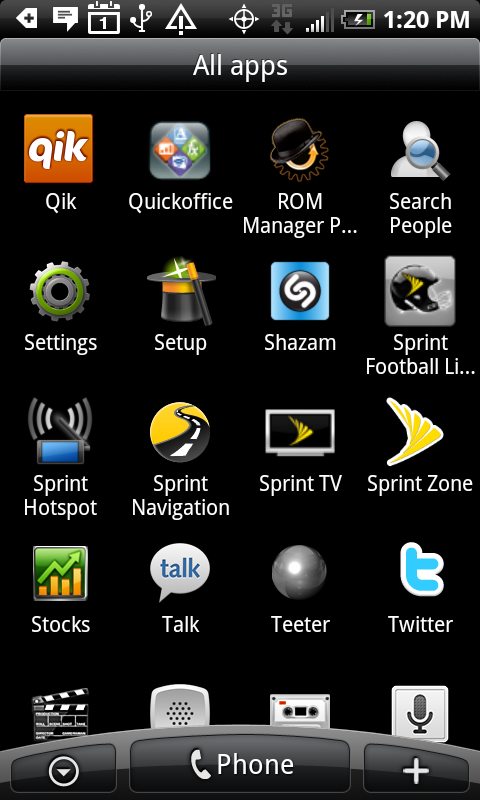
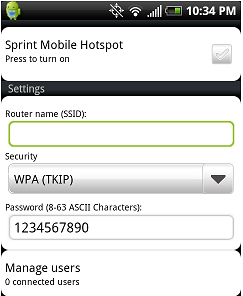
Open applications and click on Sprint hot spot >press ok on the bottom and set up the router name and the security type.
-
name the router so that other devices can find it, select your desired security level (None, WEP-128, WPA-TKIP, or WPA2-AES) and create a password.
tap the box at the top and let the EVO do the rest, a small pop-up window will appear while everything is processing,then the check mark in the box will turn green, you'll see the word "Ready," and a new router icon (with 3G or 4G, depending the connection) will show up in the status bar at the top of the screen.

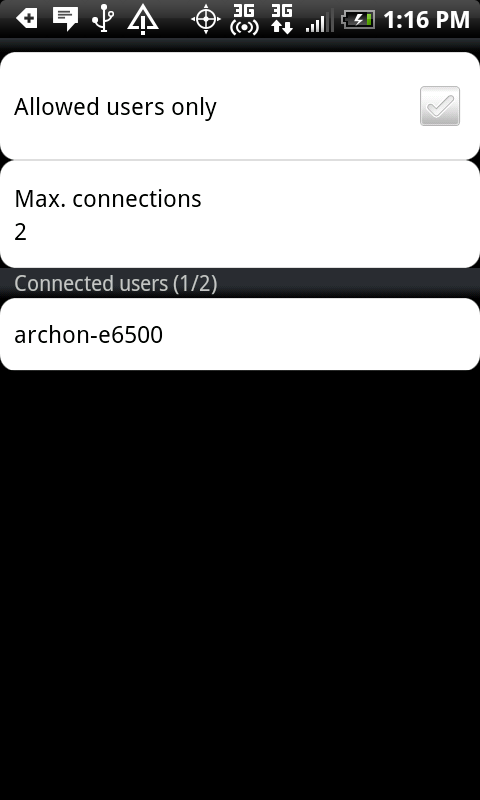
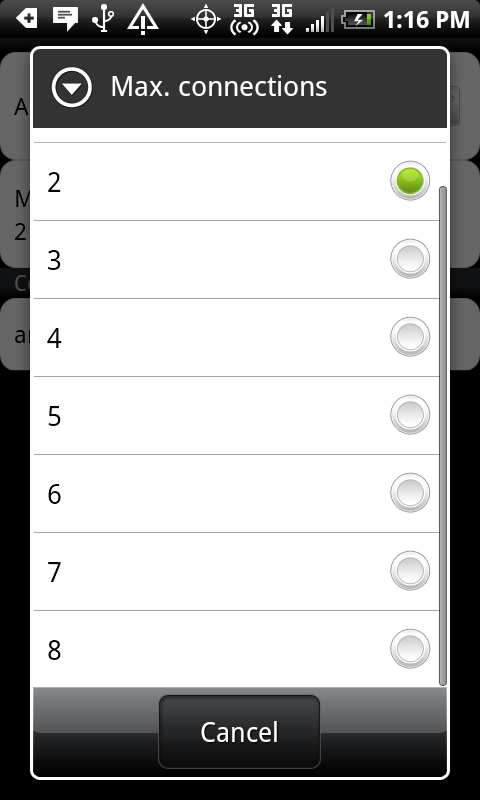
By default, the application is set up to only allow two simultaneous connections. To change this, just tap "Manage users" on the main screen, "Max connections" on the screen that follows, and select the number (2 through 8) on the pop-up window that appears. Keep in mind that the speed gets slower as the connection is shared between more devices.